Coach Setup Guide
Configure your group the way that suits you best


Set Up Your Coaching Group
Get your group up and running in three quick steps.
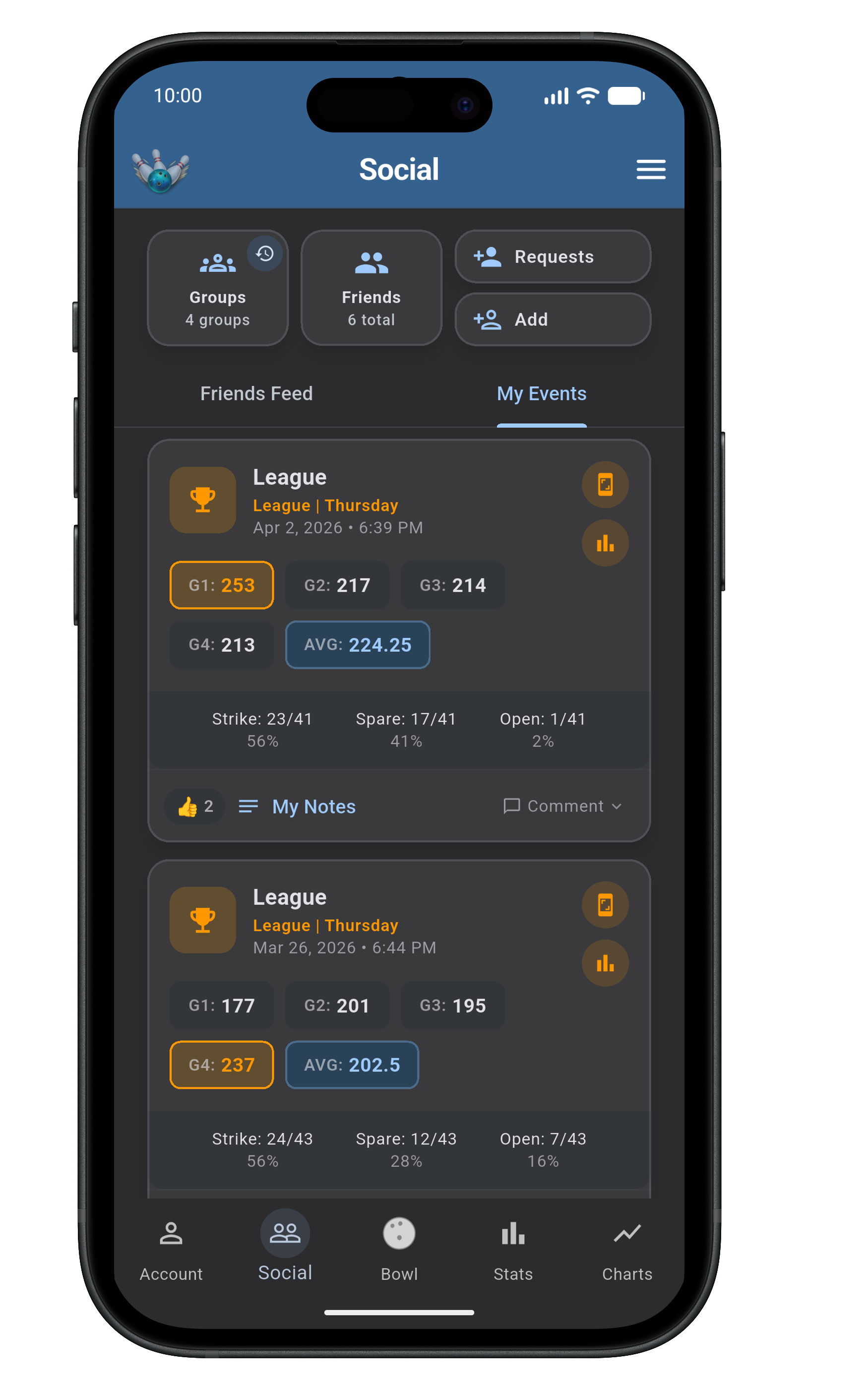
Open the Social Tab
From the bottom navigation, tap Social, then tap Groups in the top left. This is where all of your groups live. You must create an account in order to use social settings like friends and groups.
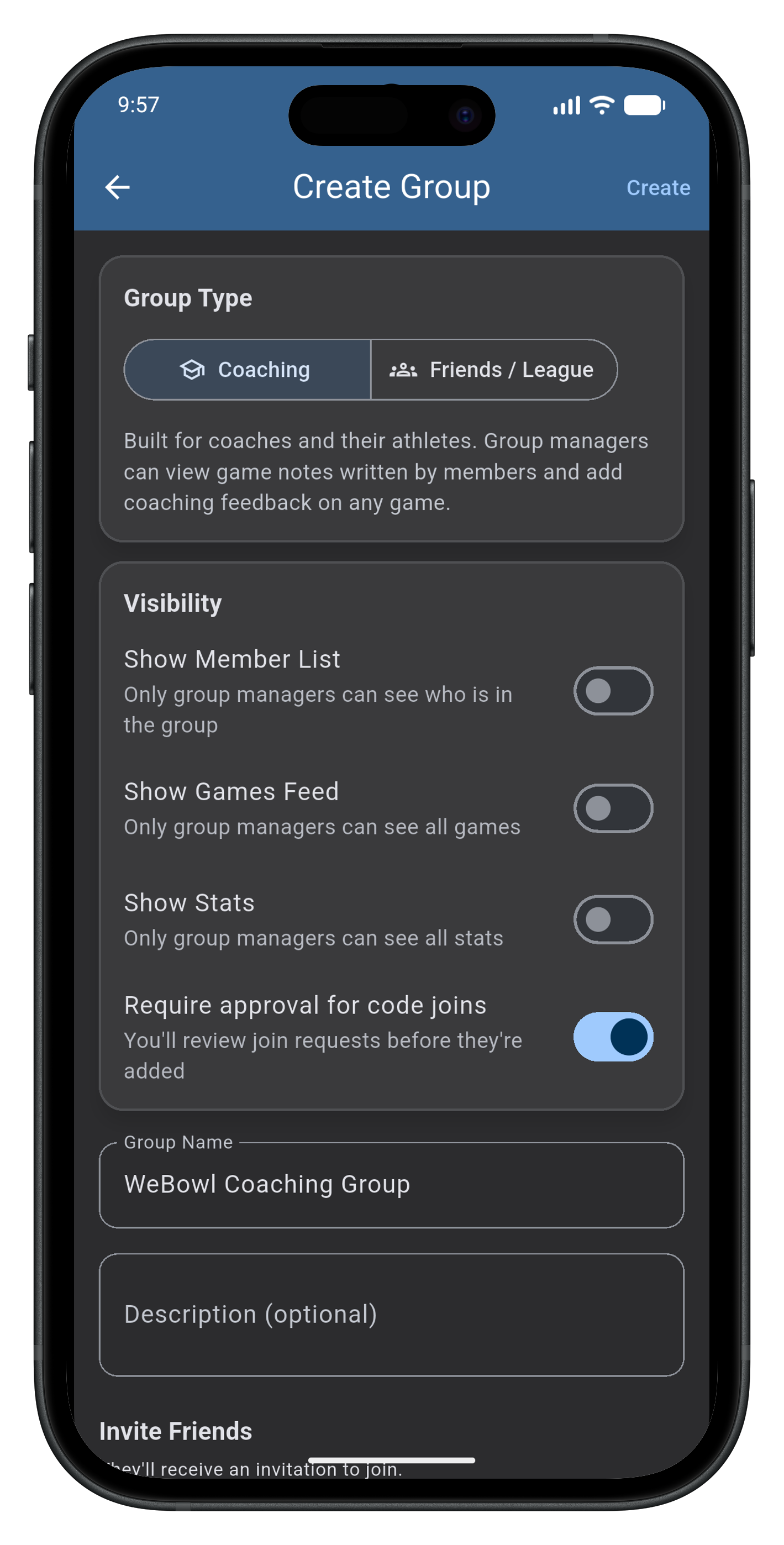
Create a Coaching Group
Choose the Coaching group type for some additional functionality built for coaches and their athletes. Select your settings (see below), provide a name and description, invite friends, and tap Create.
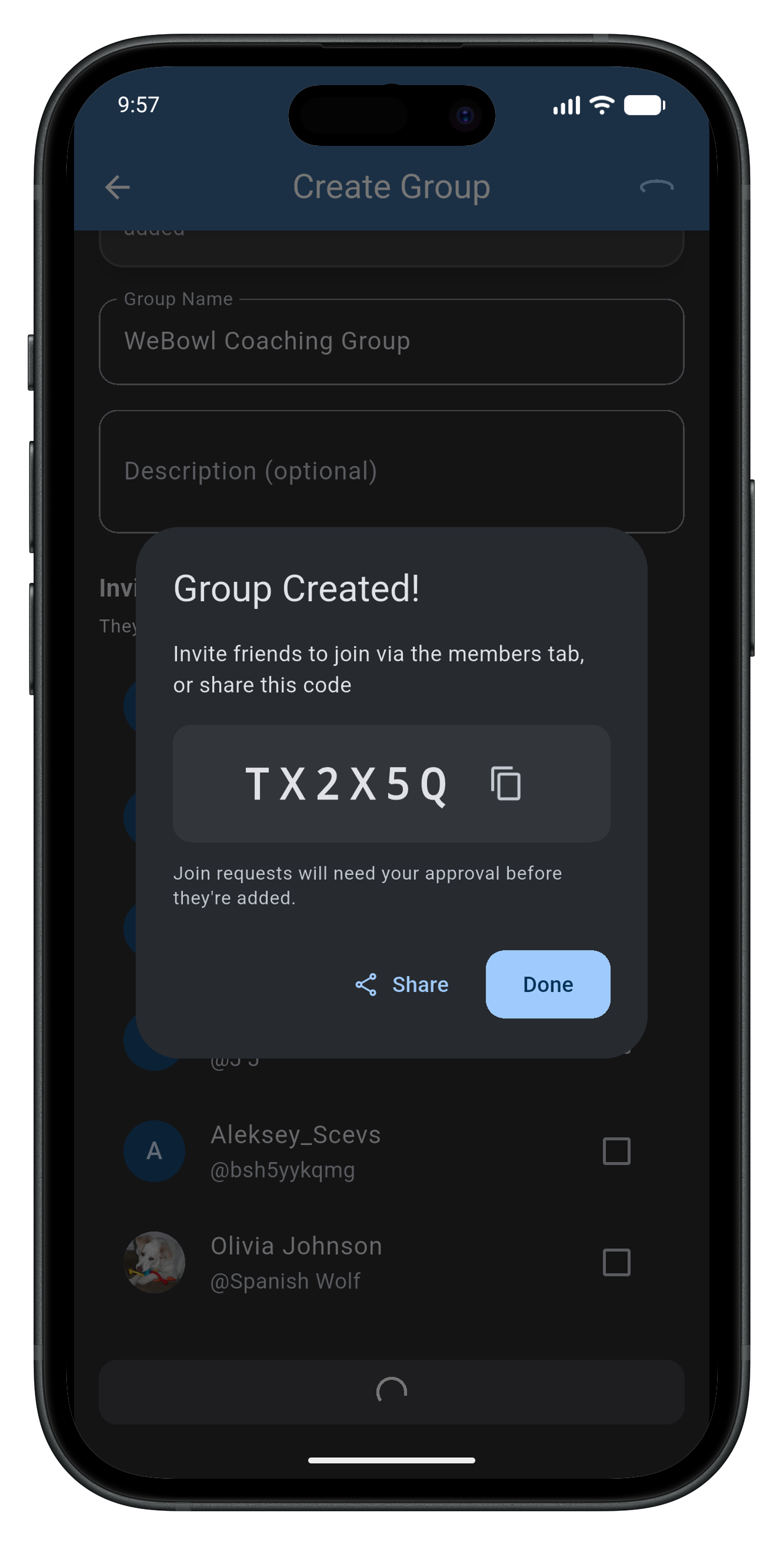
Invite Your Bowlers
Share the join code with your team, or invite any of your added friends directly from the members tab. If you require approval for joins, you'll need to review users' join requests before they can join the group.
Group Settings
Control group visibility and how members can interact.
You can mix and match. Every setting can be changed at any time from your group's settings.
What You Can Do as a Coach
Once your group is set up, everything below is ready to go.
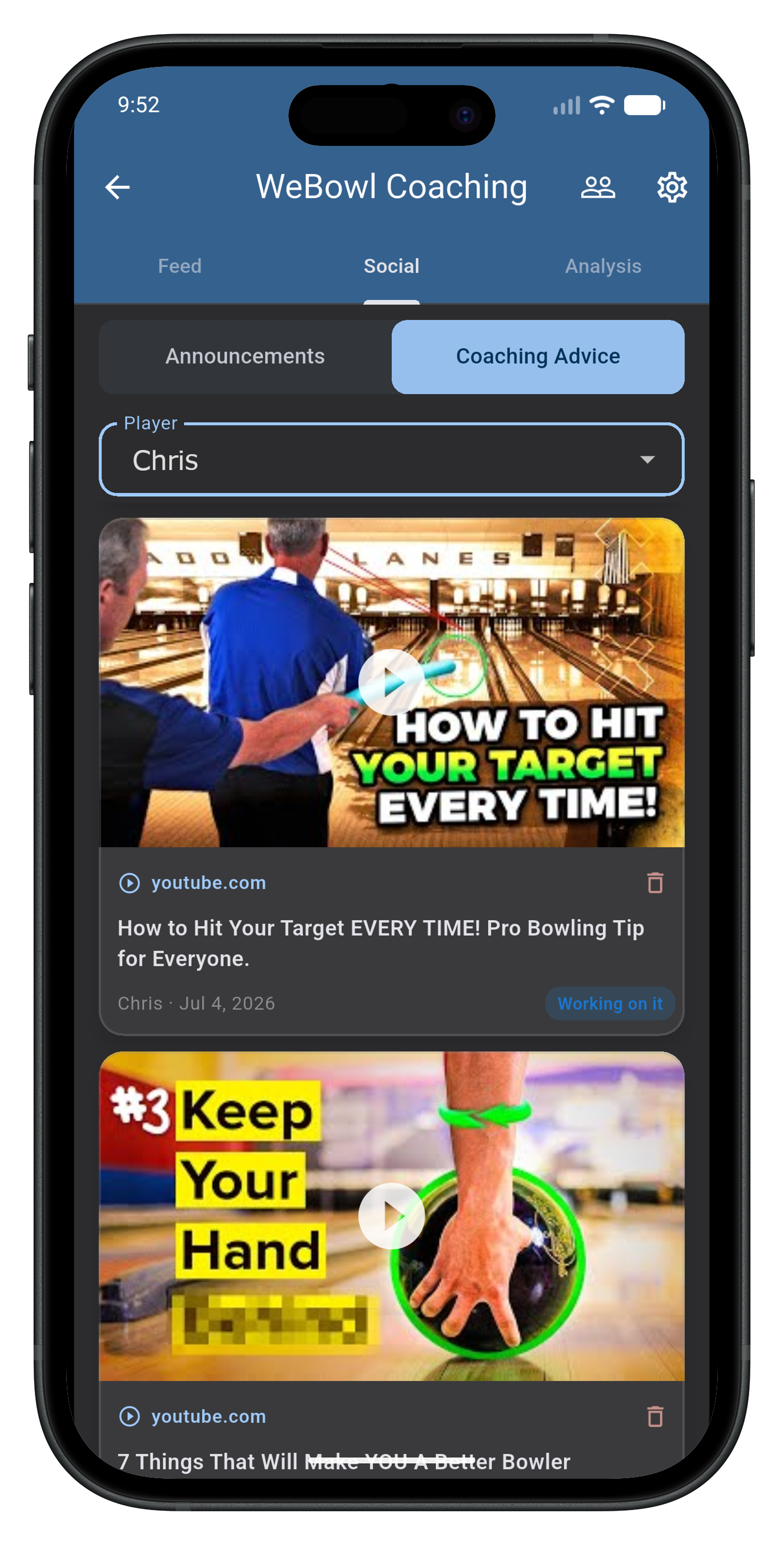
Coaching Advice
Share coaching tips and videos with your bowlers, assigning targeted advice to each player. You can also make announcements to your whole coaching group.
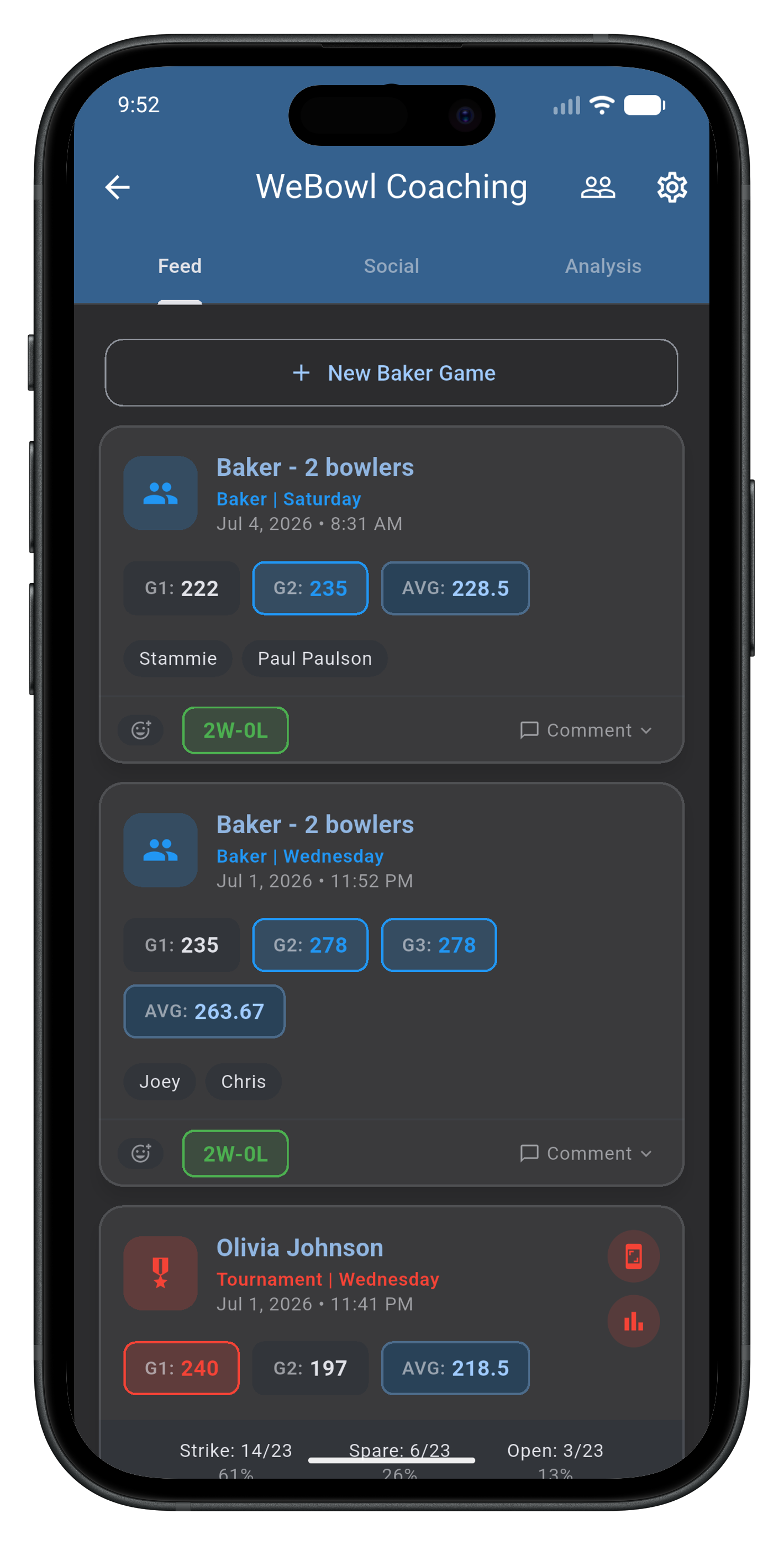
Group Feed
View every game your group members bowl and leave coaching feedback. Control the feed visibility to decide who sees what events (social vs. one-on-one coaching).
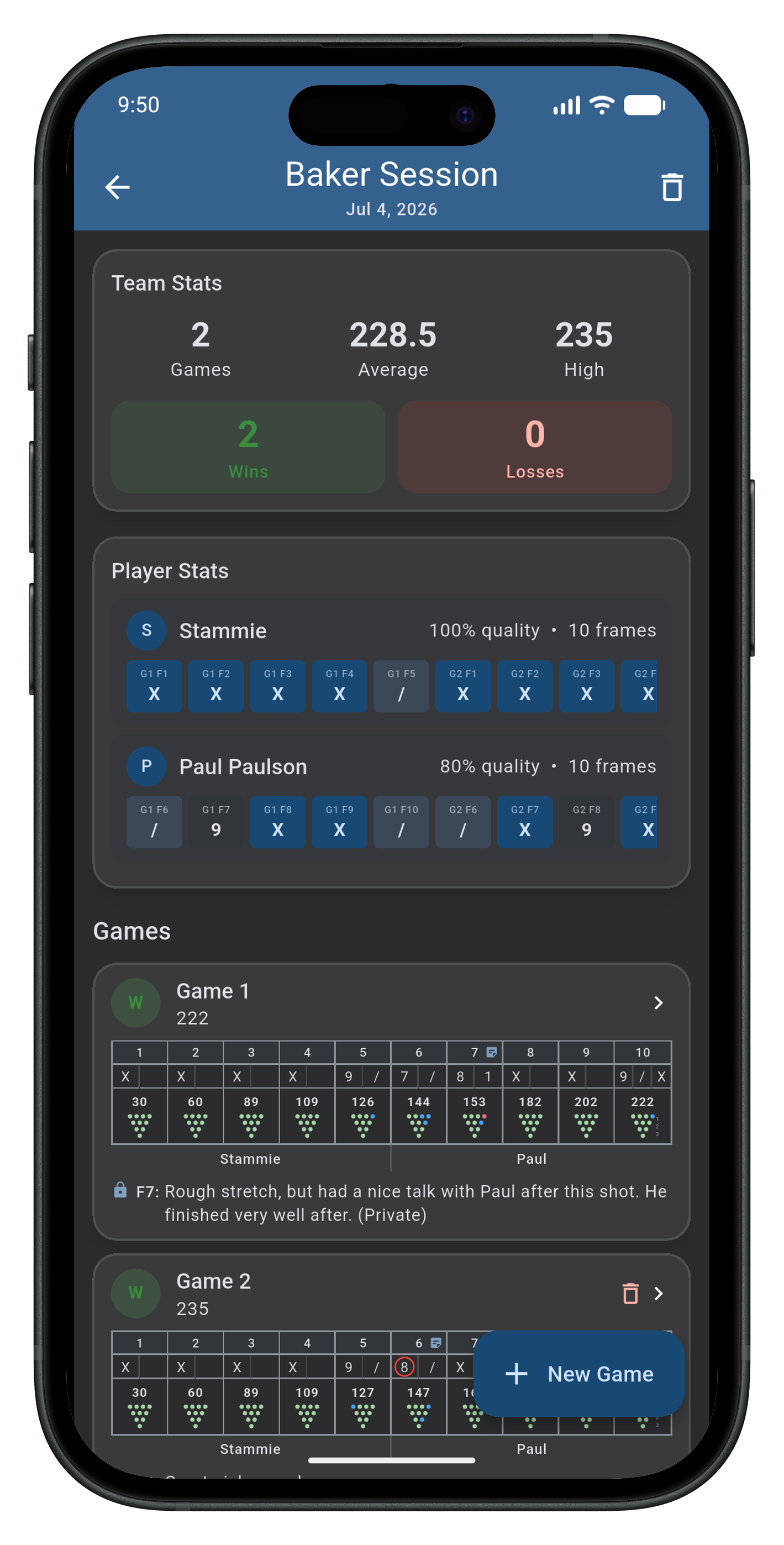
Baker Sessions
Create custom Baker lineups and track team and player stats, adjust lineups between games, and leave public or private notes on any shot.
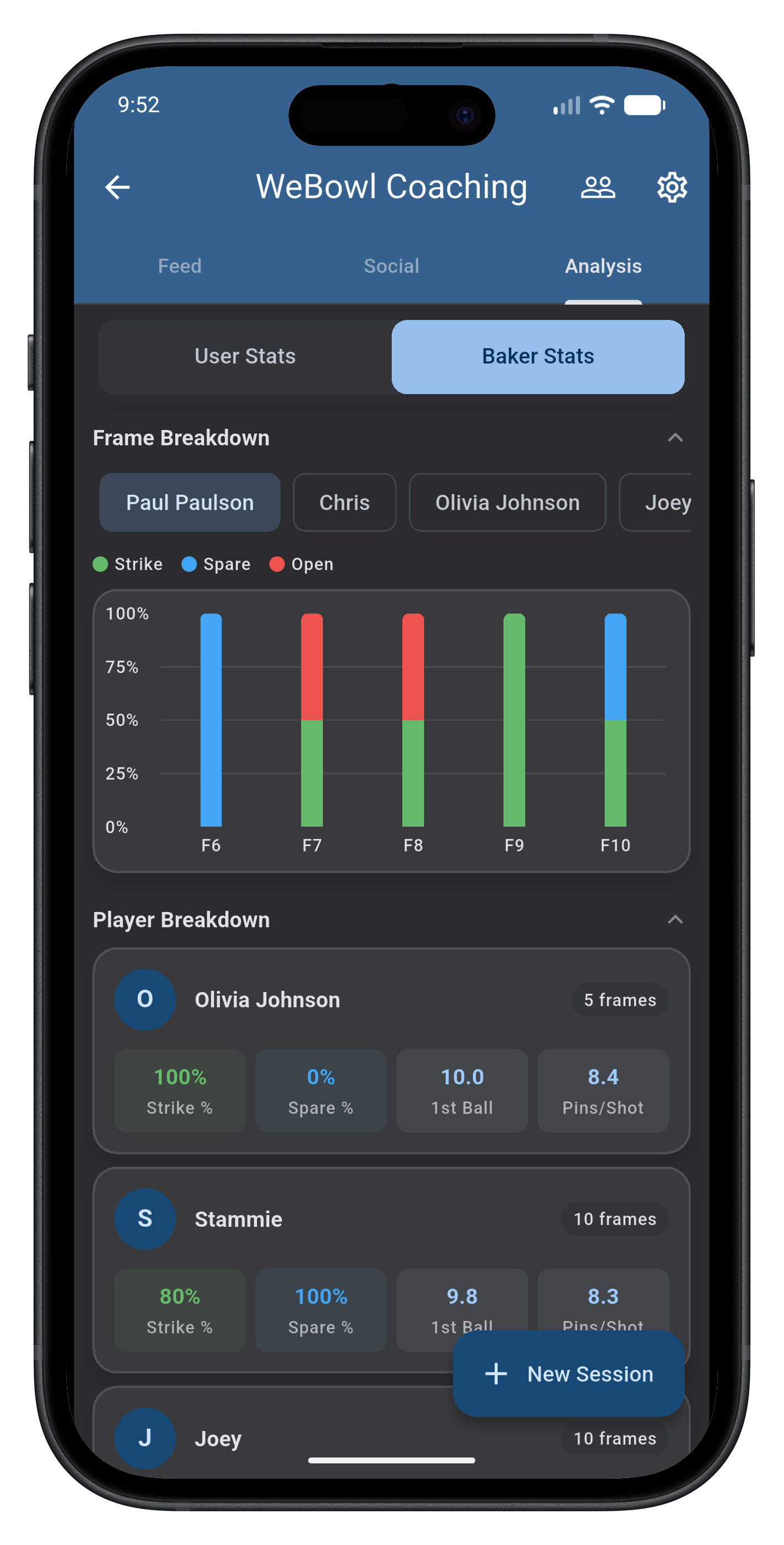
Baker Stats
Break performance down for Baker events. Analyze scoring trends, frame breakdowns, player breakdowns, previous events, clutch stats, etc.
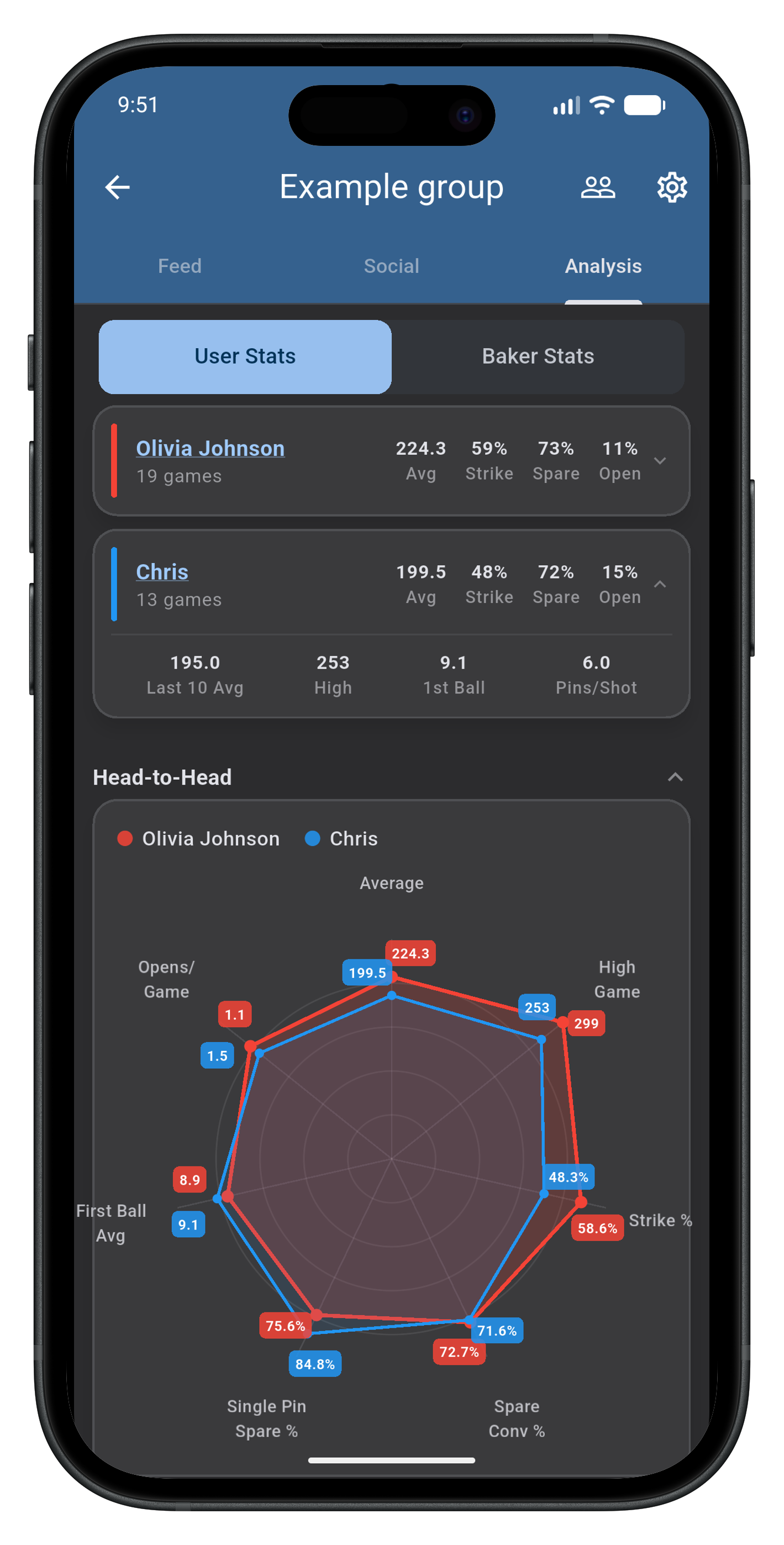
User Stats
View group members' stats by event type. Visualize head-to-head comparisons, advanced stats, score trends, frame breakdowns, and more.
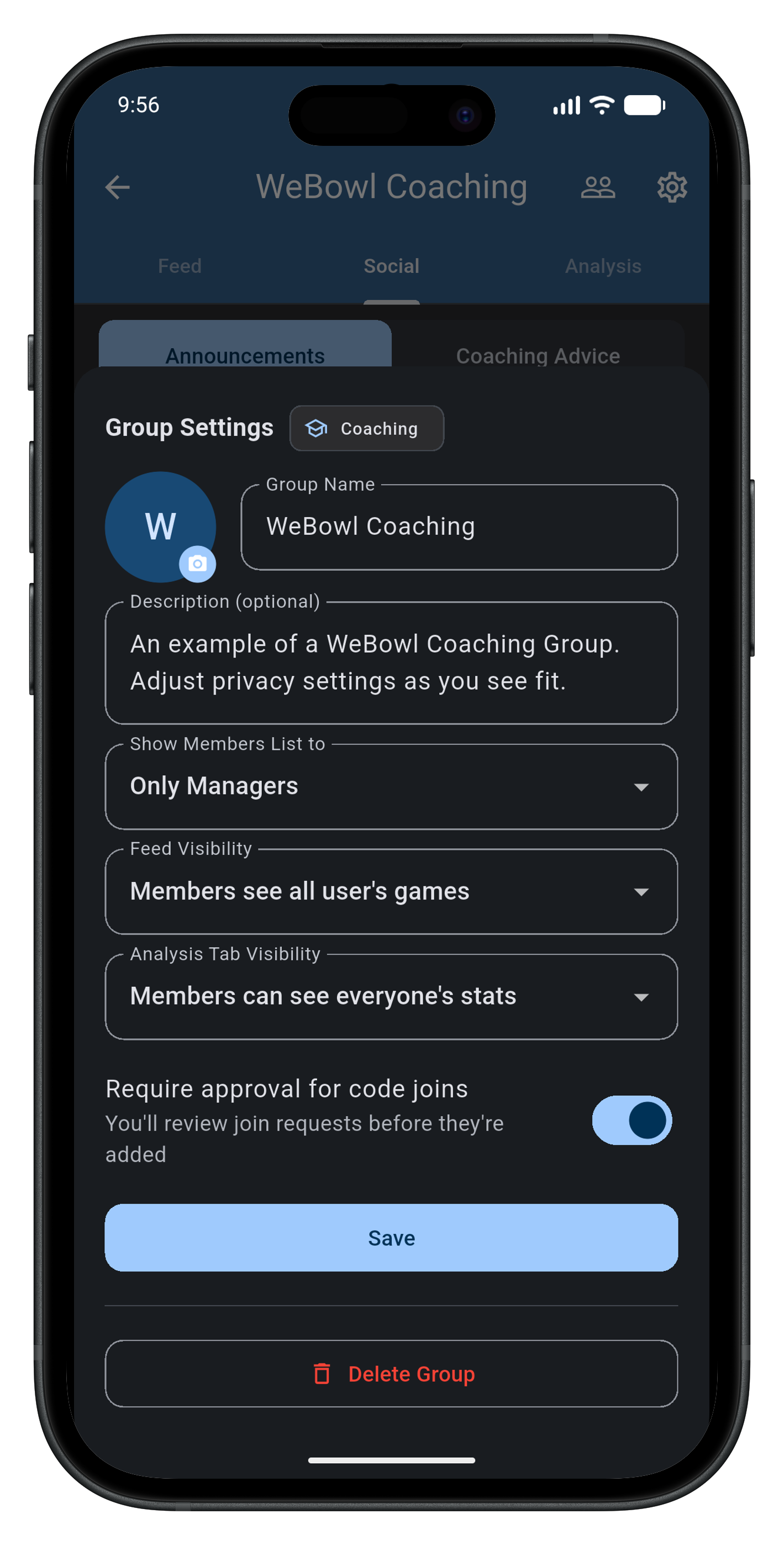
Manage Settings
Hide visibility so users can only see their own stats (private coaching), or let users view each other's stats and interact (social group).
How Does It Work for Students?
Accounts are optional, but they unlock a lot.

It's completely optional for students to download and create a WeBowl account, but there are multiple benefits. If students create an account they can receive announcements and feedback from their coaches, log their own games (if enabled), view their stats on their device, comment and react to others' games (if enabled), and more!
Coaches can always create "write-in" players and log games for joined players. Send us an email if you have any questions about what settings and options could work best for your team!
Download